
The Expenses module offers you a central location for recording and managing all expense entries created across your firm, leaving you with a clear, searchable, and organised overview of financial activity within all recorded matters and departments.
You’ll get operational efficiency and financial accuracy, ensuring every expense is properly recorded, categorised, and available for review, in moments, whenever you need it. This centralised module means you maintain transparency, improve audit trails, and support billing processes with reliable expense data at all times.
The Expenses module also serves as a central hub for managing and tracking all your expenses, including monitoring spending, submitting reimbursement claims, and tracking expense activity. This all-in-one solution records your expenses as they occur, lets you easily review everything spent in one place and helps you spot often missed costs to claim back.
By maintaining complete and accurate records, the system also supports transparency, strengthens audit trails and provides reliable expense data for approval, reporting and billing purposes.
Accessing the Expenses Module
The Expenses module is located within the Finance Manager section of the main navigation menu. You can access it by expanding the Finance Manager tab and selecting Expenses from the list of available tools.
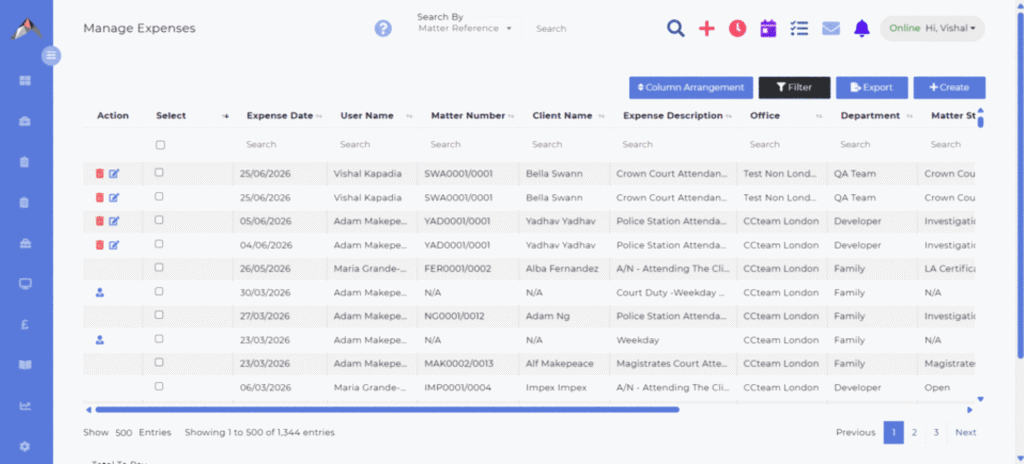
Once the module is opened, the system displays the main Expenses screen, where all existing entries appear in a structured grid. This layout provides immediate access to the most important information, as well as tools for searching, filtering, reviewing and creating new expense entries.
Expenses Overview
All expenses recorded across the system are presented in an organised grid view. Each entry includes essential details such as the date of the expense, the user or fee earner associated with it, the matter number and client name, the office and department involved, a short description, and the total amount. The grid supports column sorting and individual column searches, letting you easily locate specific items, even when managing extensive lists of expenses.
The module is designed to accommodate a wide range of expense types commonly found within legal practices. These include travel fares, mileage claims, parking charges, taxi costs, and various other disbursements. You can open any entry to view or edit its details and can remove unnecessary items directly from the grid. Multiple records may be selected together for batch operations, making it easy to manage larger workloads too.
Above the grid, a set of tools enhances navigation and data management. You can search by matter reference, adjust visible columns to suit your workflow, apply detailed filters, create new entries, and export the displayed information for external reporting. The grid can display up to 500 items per page, with additional pages accessible via navigation controls at the bottom of the screen.
Filtering Options
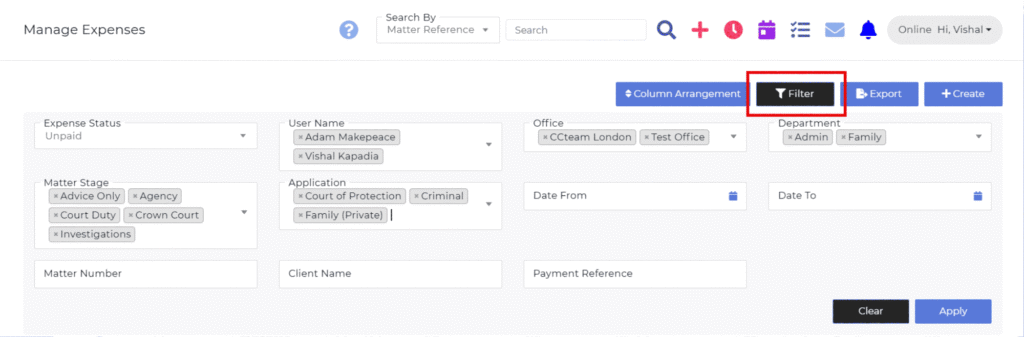
The filtering panel provides a flexible way to refine the list of displayed expenses. Filter by status, by fee earner, by office or department, by matter stage or application, and by specific date ranges.
Filters can also be applied using matter numbers or client names. These options can be combined to create highly targeted lists, ensuring you can isolate the exact information needed at any given time. Once filters are applied, the system updates the results straight away. A single click allows you to clear all filters and return to the full set of expense entries.
Editing an Expense
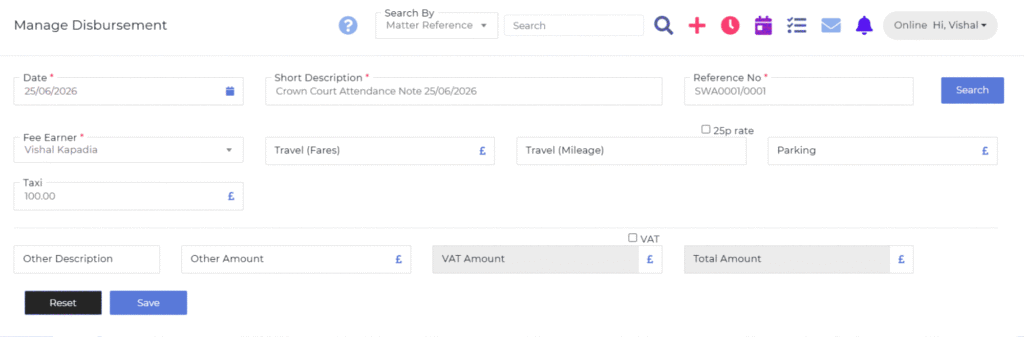
Selecting an entry from the grid opens the Manage Expense screen. This page displays all fields associated with the record, including the date, a short description, the reference number, the fee earner’s name and the available expense categories such as travel, mileage, parking, taxi and other disbursements.
Mileage entries can calculate total amounts using a mileage rate, while VAT fields can be adjusted or toggled depending on the nature of the expense.
The total amount is displayed clearly, allowing you to verify all details before saving and the form is designed to be straightforward, making updates or corrections easy. A reset option is also available to clear the form if needed, and the save button applies the changes to the system.