
The Out of Hours module provides a dedicated space for managing all Police Station/ Magistrates attendances and work entries carried out outside of standard operating hours.
This module brings together all the records created by fee earners, allowing your firm to track out-of-hours activity in a structured and reliable way. You’ll get clear and organised overviews of these entries, helping your teams maintain accurate compliance records, manage billing processes more efficiently and ensure all out-of-hours attendances are properly logged and accounted for. It’s even configurable depending on the policies of your Firm.
Accessing the Out of Hours Module
The Out of Hours Module is located within the Tools section of the main navigation menu.
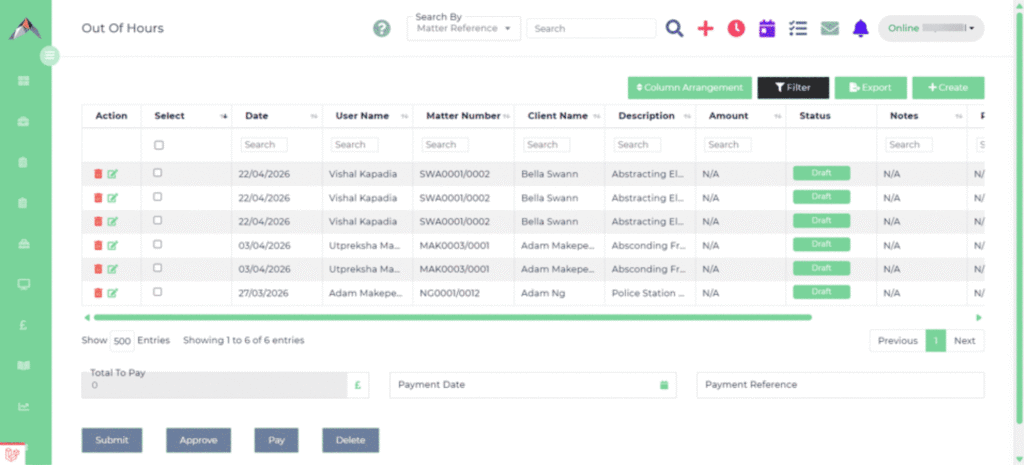
You can access it by expanding the Tools menu and selecting Out of Hours from the available options. Once opened, the module displays the main Out of Hours screen, presenting all existing entries in a structured grid format. This screen provides immediate access to tools for reviewing, sorting and filtering entries, allowing you to work with the data quickly and effectively.
The entries are pulled from the system automatically to create a claim for checking and submitting to the Firm to get paid for OOH work.
Out of Hours Overview
All out-of-hours attendance entries are displayed in a detailed grid offering essential information such as the date of attendance, the user or fee earner who recorded it, the associated matter number, the client’s name, a short description of the attendance and the corresponding status. Additional fields for notes, payment reference and payment date are also shown. The grid supports column-by-column searching and sorting, making it simple for you to locate specific records even when working with large datasets.
The module is designed to capture the full range of out-of-hours work typically performed within legal practices, including police station attendances. You can open any entry to review its details, make amendments if required or remove items from the system. Multiple records may be selected together for batch actions, supporting an efficient workflow when working with high volumes of data.
A set of tools located above the grid provides additional functionality. You can perform global searches using matter reference numbers, adjust visible columns to suit preferences and apply detailed filters to refine the list of displayed entries. You can also create new records where necessary and export the current dataset for reporting purposes. The table is designed to handle extensive data and displays up to 500 records per page, with navigation buttons available to move through additional pages.
Filtering Options
The filter panel at the top of the module provides lets you narrow down the list of entries based on specific criteria. Filters can be applied using matter stage, application, date range, matter number, and client name, allowing you to isolate the exact information needed at any given time. These filters can be used individually or combined for more targeted results. Once filters are applied, the grid updates immediately to reflect the selected criteria, and a clear button is available to reset all filters and return to the full list of entries.
Managing an Out of Hours Entry
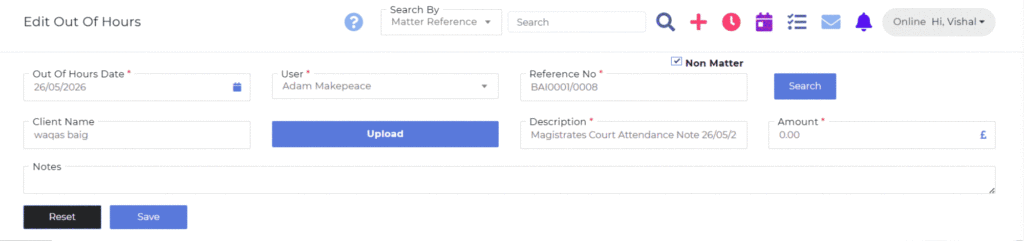
Selecting a record from the grid opens the detailed view of the out-of-hours entry. This screen displays all fields associated with the attendance, including the date, the username, the matter number, the client details, a description of the attendance, the amount if applicable and the current status of the entry. You can update notes, payment information and other relevant details before saving the changes. The layout is designed for clarity and ease of use, ensuring that all information is accessible and simple to update. Once saved, the changes are applied immediately within the system.